
How to Install IPTV on Windows and Mac
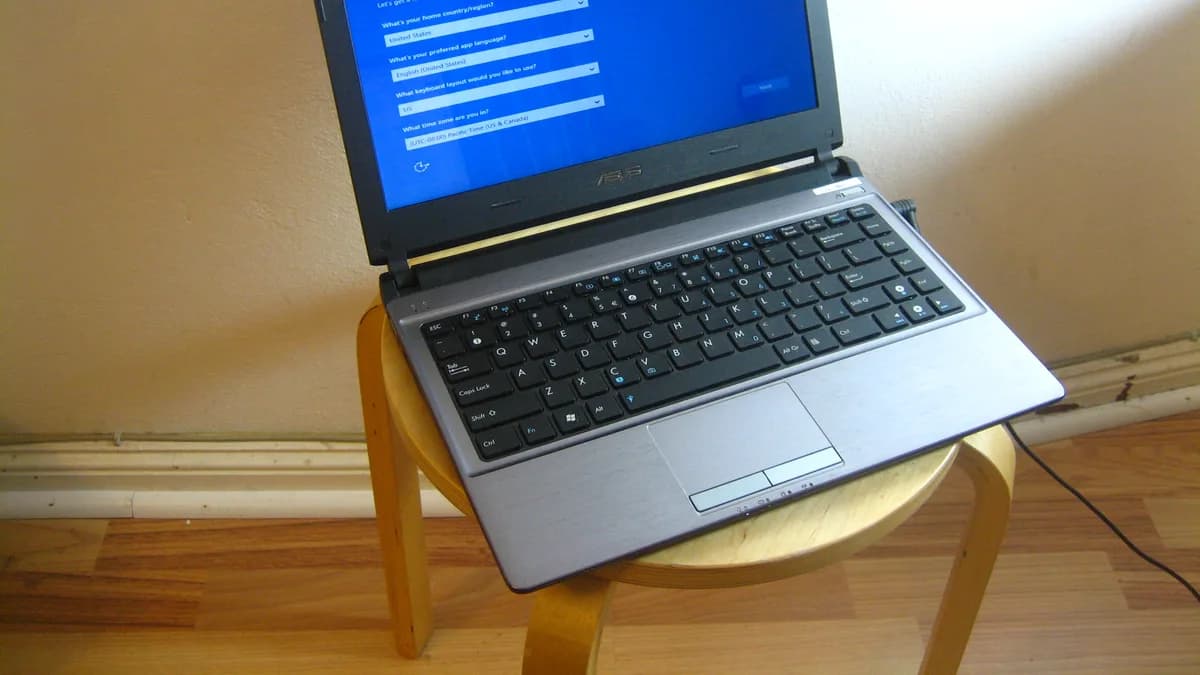
Both Windows and Mac support IPTV through standalone desktop player apps, which means full-screen playback on whatever monitor you're connected to. The setup flow is nearly identical between the two, aside from a couple of OS-specific quirks.
Picking a desktop player app
Find a desktop IPTV player that supports either Xtream Codes login or M3U playlists, grab it from the developer's official site, and install it the way you would any other desktop program.
Notes for Windows users
Windows Defender sometimes flags installers it doesn't recognize — stick to official download sources and confirm the publisher before continuing. Full instructions live in our Windows installation guide.
Notes for Mac users
macOS may refuse to open apps from unidentified developers the first time you launch them. If that happens, head to System Settings > Privacy & Security to approve it. Full instructions live in our Mac installation guide.
Keeping the connection stable
A desktop setup is a great candidate for a wired Ethernet connection, particularly if you're streaming 4K — read more in our guide on wired vs. wireless streaming.
What's next
If you haven't signed up yet, compare IPTV World Pro plans before you download a player app.