
How to Install IPTV on Firestick
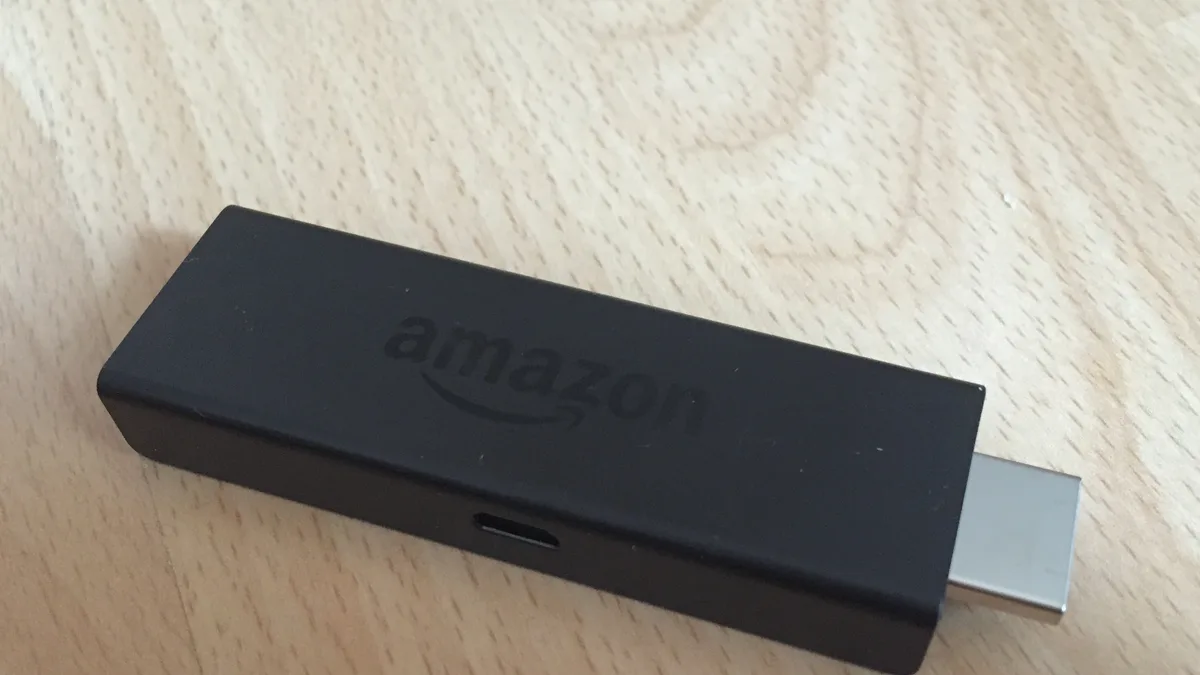
Amazon's Firestick shows up constantly in IPTV setups for good reason — it's cheap, easy to find, and lets you sideload apps. Consider this a general overview; for every detail and troubleshooting tip, check our complete Firestick installation guide.
Why Firestick works well for IPTV
Where some smart TV platforms lock their app stores down tight, Fire OS lets you install apps from outside the Amazon Appstore once you flip the right setting. That openness is exactly what makes installing a third-party IPTV player so painless.
The general process
Broadly, you'll enable apps from unknown sources, install the Downloader app, use it to grab a compatible IPTV player, and then log that player into your subscription.
What to have ready
Before diving in, keep your IPTV World Pro login details or M3U link within reach, and make sure your Firestick has a solid internet connection — aim for at least 15 Mbps if you want smooth HD playback.
Common first-time hiccups
Typos in the server URL and apps that refuse to launch right after installing are the two most common snags, and both are usually fixed by double-checking your credentials or simply restarting the device. Our complete Firestick guide has the full troubleshooting checklist.
After you're set up
Once your channels are loading, take a minute to favorite the ones you watch most for faster access later, and keep our FAQ page bookmarked in case anything else comes up.