
How to Fix IPTV Audio and Video Out of Sync
Watching dialogue land a beat before or after the actor's mouth moves is the kind of distraction that's nearly impossible to tune out. If you're wrestling with IPTV audio out of sync with the picture, you're not alone — it's a genuinely common complaint, and it's almost always rooted in how your audio gets processed rather than any flaw in the stream itself.
This guide walks through why sound and picture drift apart during IPTV playback, a practical sequence for fixing it, and what to do when the cause turns out to be beyond your control.
What actually causes IPTV audio and video to drift apart
Under the hood, audio and video are two separate data streams that have to be stitched back together at precisely the right instant. Whenever something in that pipeline slows down one stream but not the other, you get a mismatch — anything from a minor annoyance to something that makes viewing genuinely unpleasant. The typical causes include:
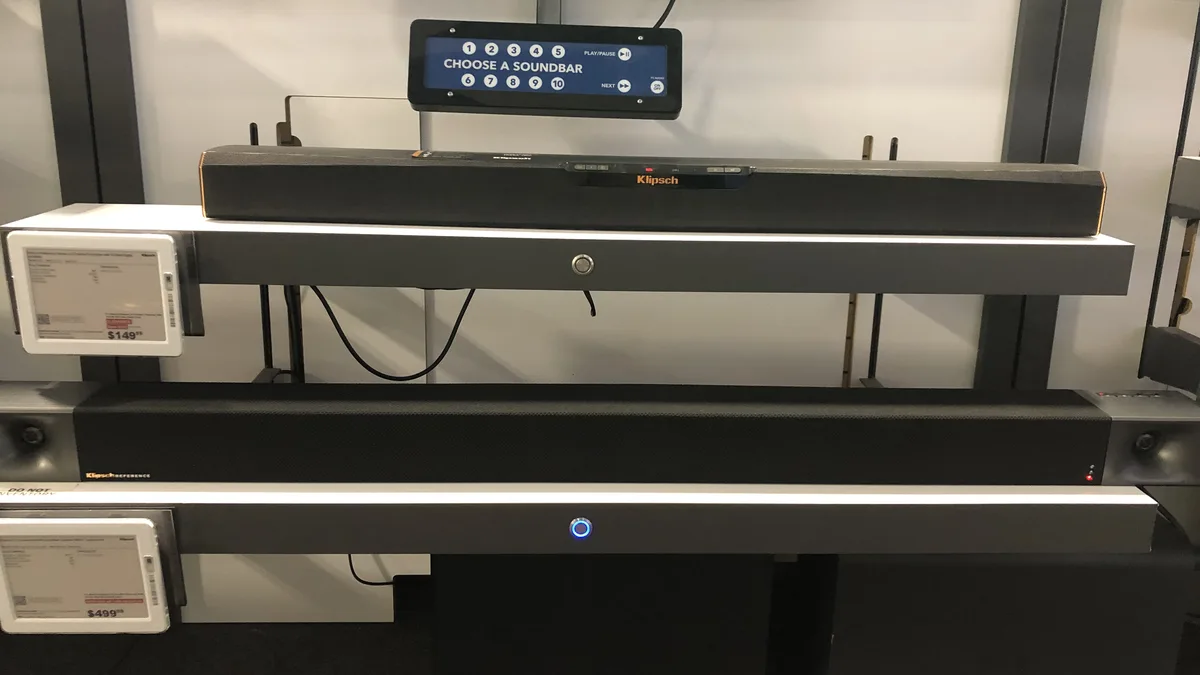
- Added processing time from external audio gear — a soundbar, AV receiver, or Bluetooth speaker — since each takes a real, measurable moment to decode surround sound or wireless audio.
- A mismatch between audio and video codecs that decode at different speeds on your device, an issue that shows up more on older or budget hardware.
- Shaky network conditions, which can cause video frames to lag or drop while audio keeps playing steadily, because the two are often buffered independently.
- Bugs or outdated code in the player app that mishandle the timing relationship between the two streams, often surfacing right after a device's OS updates.
- TV-side audio features like surround processing or sound enhancement modes that quietly add their own delay before audio reaches the speakers.
Sometimes the drift creeps in slowly — worse the longer you watch — and sometimes it's there from the very first second. Which pattern you're seeing is a genuinely useful clue: gradual drift usually points to a performance problem building up on your device over time, while sync that's off from the start more often traces back to your audio hardware or a codec mismatch.
A step-by-step approach to fixing audio and video sync
1. Start by restarting the player app
If the drift showed up mid-session, simply closing and reopening the app resets the timing relationship between audio and video and clears up a large share of these issues on its own, no settings changes required.
2. Look for a sync or audio delay control inside the app
A lot of IPTV player apps hide a manual audio delay slider somewhere in playback or advanced settings. If the offset stays roughly consistent every time you watch, dialing this in manually is often the cleanest and most lasting fix available.
3. Try playback through your TV's own built-in speakers
If sync lines up correctly on your TV's built-in speakers but falls apart once routed through a soundbar or receiver, the delay is coming from that external audio equipment rather than the stream — and this one test alone narrows the problem down dramatically.
4. Dig into your soundbar or receiver's processing settings
Surround decoding, virtual sound enhancement, and Bluetooth audio all tend to add processing delay of their own. Plenty of soundbars include a dedicated "sync" or "lip-sync" control built to compensate for exactly this — it's worth digging through the device's settings menu or manual, since this option is easy to miss.
5. Swap a Bluetooth connection for a wired one
Bluetooth audio carries built-in latency that a wired connection simply doesn't have. If Bluetooth speakers or headphones are in the mix, switching to HDMI or optical often clears up sync problems immediately.
6. Update both the player app and your device's firmware
Sync bugs are exactly the sort of thing developers patch on a regular basis, particularly following changes to how a device handles hardware audio decoding. If it's been a while since you updated either your IPTV app or your streaming device's system software, that update may already contain the fix you need.
7. Give the streaming device a full restart
When drift builds up gradually over a long viewing session, a complete device restart flushes out whatever memory or timing issue was accumulating and hands you a clean slate to work from.
Firestick audio delay
Delay on Firestick tends to appear specifically when it's routed through an AV receiver or soundbar instead of plugging straight into the TV — that extra link in the audio chain adds latency the video path never picks up. Connect the Firestick's HDMI output directly to the TV as a test, then add the soundbar back in if that clears things up, so you know exactly where the delay originates before touching any settings.
Smart TV audio sync problems
Smart TVs often ship with audio enhancement features — labeled things like "clear voice," "surround," or "auto volume" — that can each introduce their own processing lag. Turning these off one at a time while checking playback in between is far more reliable than switching everything off simultaneously and losing track of what actually made the difference.
Sync issues on Android TV and streaming boxes
Android TV boxes tend to pass audio through with less added delay than a Smart TV's built-in software, but sync trouble can still surface when a box runs through an AV receiver that's also handling video pass-through. If the drift only appears with the receiver in the chain, connect the Android TV box straight to the TV as a test, and check whether the receiver itself has a delay or lip-sync setting worth adjusting.
When the cause sits outside your setup
If sync problems show up on every channel, on every device, and even after removing external audio gear from the equation entirely, the root cause may be network instability affecting how video frames arrive relative to audio. IPTV World Pro has no control over your TV's audio processing, your soundbar's firmware, or your home network setup — but our support team can help you work out whether the issue traces back to your audio equipment, your device, or your connection.
How IPTV World Pro can help with playback trouble
If you've already tested with your TV's built-in speakers, tried adjusting audio delay, and updated your apps without any luck, our support team can help confirm whether the problem is tied to your account, a specific channel, or your device setup. Sync trouble sometimes turns out to be device-specific — our devices page is worth a look if you're weighing a different setup that handles audio decoding more consistently.
When sync trouble shows up alongside buffering or a black screen rather than on its own, the two may share a root cause — check our guides on fixing IPTV buffering and freezing and channels not loading for related steps.
Keeping audio and video aligned over the long run
Once you've fixed sync, a few habits keep it from creeping back out of alignment. If you dialed in a manual audio delay setting inside your player app, jot down the number you landed on — some apps forget this setting after an update, and having your previous value on hand saves you from re-diagnosing the same problem from zero. Keep your soundbar or receiver's firmware current alongside your streaming device's own software, since audio bugs on the equipment side are just as common as anything in the player app. And if you regularly switch between audio setups — headphones one night, a soundbar the next — expect each one to need a slightly different sync adjustment, since they rarely share identical processing delay.
If sync trouble tends to reappear specifically right after your TV or streaming device installs an automatic update, that's a pattern worth remembering: check your sync settings after any update instead of waiting for the drift to become noticeable again.
Conclusion
Audio and video sync problems sound like they should be complicated, but they almost always trace back to one extra step somewhere in the audio chain — a soundbar, a Bluetooth link, or a setting quietly adding delay that video never picks up. Testing with your TV's own speakers first will usually tell you within a minute whether the issue is your audio gear or something else entirely. If it's still not resolved after working through this guide, our support team can help you dig deeper.