
IPTV Channels Not Loading or Showing a Black Screen? Here's How to Fix It
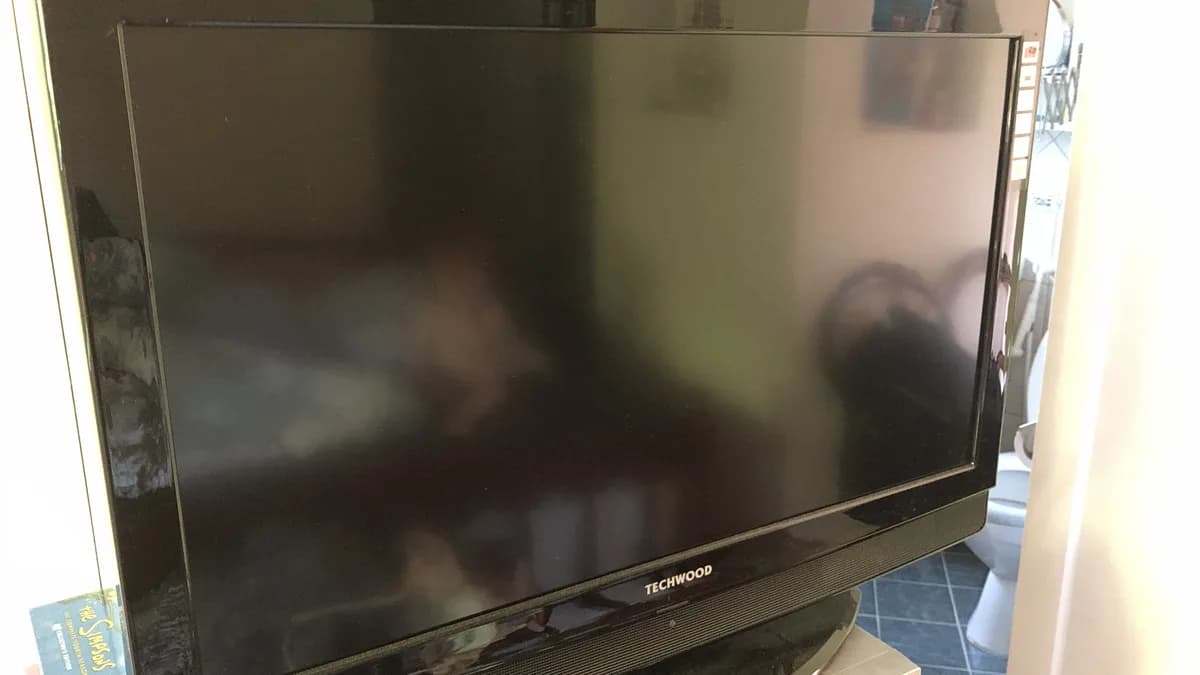
A black screen ranks among the most unnerving IPTV glitches simply because it hands you nothing to work with — no error text, no spinner, just an empty frame. When you're facing IPTV channels not loading, the actual cause is typically much narrower than the panic suggests, and there's a sensible order in which to rule things out.
Below you'll find the usual suspects behind channels that won't open or that load into a black frame, a sequence of steps for isolating what's actually happening, and guidance for when the issue simply isn't something you can fix on your end.
What typically causes a black screen or channels that refuse to load
A blank screen can trace back to several unrelated points of failure, which is precisely what makes it so hard to diagnose by instinct alone. The usual culprits are:
- A stale or misbehaving player app that fails to request the stream correctly, sometimes triggered by an OS update the app wasn't built to handle.
- A playlist still mid-sync, particularly in the minutes right after setup, while the channel roster and guide data are still populating behind the scenes.
- Hardware or OS incompatibility, where the app installs fine but isn't truly supported on that device, producing a blank screen instead of a helpful error.
- A short-lived outage on one channel's source, unconnected to your setup, which usually clears up on its own before long.
- Connectivity trouble that blocks the stream from starting even though general web browsing works fine on that same device.
- Cable or display problems, especially common on setups running through a separate streaming box rather than a TV's native app.
Since a black screen tells you almost nothing by itself, your quickest route to a fix is usually working down this list in order of likelihood rather than trying to guess the cause from the symptom alone.
A step-by-step approach to fixing channels that won't load
1. Test a couple of other channels first
Before assuming the whole system is broken, flip over to two or three unrelated channels — say, one news channel and one sports channel. If those play normally, you're looking at a single-source hiccup rather than a device-wide or account-wide problem, and it makes more sense to flag that one channel than to rebuild your entire setup from scratch.
2. Verify your internet is actually working
Pull up a browser or a separate app on the same device to confirm you have a real connection. A blank, error-free screen sometimes just means you have no connectivity at all — this happens more often than you'd think if Wi-Fi dropped recently and quietly reattached to the wrong network, like a neighbor's unsecured signal or your router's secondary band.
3. Force-quit and relaunch the player app
This single step resolves a surprising share of black-screen cases, particularly when the app silently lost its grip on the stream partway through a session without ever surfacing an error to explain what happened.
4. Reboot the streaming device, not just the app
A genuine restart — beyond simply closing the app — clears out situations where the device's memory has filled up to the point that new video sessions can't launch, even while the app itself still opens and looks fine on the surface.
5. Let a newly added playlist finish syncing
If this started right after you added your subscription, the full channel list may still be loading in the background, and channels can show up in the guide before their streams are actually ready. Give it a few minutes before assuming anything's actually broken.
6. Check the HDMI cable and input on box-based setups
Running a separate streaming box into your TV? A half-seated HDMI cable or a TV parked on the wrong input can mimic a black screen on one specific channel, even though the real issue has nothing to do with IPTV at all. Unplug the cable and push it firmly back in before touching any app settings.
7. Update the player app, or wipe it and reinstall
Older app builds sometimes fail to properly negotiate playback with newer stream formats, especially after a provider overhauls its server setup. Updating — or doing a full clean reinstall — fixes this without touching your subscription, since your login credentials live with your account rather than inside the app itself.
Black screen problems specific to Firestick
On Firestick, a black screen tends to follow either a half-finished app update or storage that's run low. Head into Settings to check your available space, and if it's tight, removing apps you no longer use can fix playback trouble that seemed to have nothing to do with storage. Our Firestick installation guide walks through a clean setup if a reinstall turns out to be the fix you need.
Smart TV-specific playback trouble
The built-in apps on Smart TVs sometimes trail behind their Firestick and Android TV counterparts when it comes to updates, which is part of why black-screen issues can linger longer on a Smart TV until the app itself catches up. If a restart and reinstall haven't helped on your Samsung or LG set, our Smart TV installation guide lists other options, including running an external device off the same television.
Black screens on Android TV boxes
Android TV usually handles app compatibility better than a Smart TV's built-in system, but a black screen can still crop up after a system update quietly changes permissions the IPTV app depends on. If a channel that played fine yesterday goes black today, check whether your box updated itself recently, and try reinstalling the player app if it did. Our Android TV installation guide covers the setup process if a fresh install ends up being the answer.
When the issue genuinely isn't on your end
If one particular channel is black across several devices and different networks while everything else streams fine, that strongly suggests a temporary problem with that channel's source rather than anything in your own setup. These usually clear up on their own before long, but it's still worth flagging so a provider can confirm and look into it rather than just waiting it out blindly. It's also worth being upfront that IPTV World Pro has no control over your TV's HDMI port, how much storage your device has left, or your home network — but our team can help you figure out which of those is actually behind the problem.
How IPTV World Pro support can help
When a channel refuses to load or the screen just goes black without explanation, our support team can check whether you're dealing with an isolated source outage, an account-level issue, or something tied specifically to your device. If you've worked through every step above and a channel still won't come up, reach out to IPTV World Pro support with the channel name and your device details so we can dig into it directly.
For anything tied to setup, our installation guides walk through clean-install steps for every device we support, and our FAQ page covers other common playback questions.
Cutting down how often black screens happen
A handful of habits keep black screens from becoming a recurring headache. Update your player app proactively rather than waiting for something to fail, since a lot of these updates exist specifically to patch compatibility issues that follow OS changes. If you're working with limited storage, get into the habit of clearing out apps you don't use regularly instead of waiting until space runs out and performance has already taken a hit. And if you frequently move a device between Wi-Fi networks — say, carrying a Firestick from room to room with separate access points — check the connection after each move rather than trusting that it reconnected properly on its own.
If the same black-screen problem keeps coming back on one specific device no matter what you try, it may be worth asking whether that piece of hardware has simply reached the end of its useful life for streaming. Aging devices tend to grow less dependable over time even when each individual fix keeps technically working.
Conclusion
A black screen feels alarming precisely because it leaves you with nothing to go on, yet the actual list of causes is fairly short and predictable once you know where to look. Ruling out a single-channel issue first, then working through app and device restarts, clears up the vast majority of cases. If you've gone through every step here and channels still won't come up, our support team can help you pin down what's really going on.